Sign in with GitHub, Google, or email
What it does
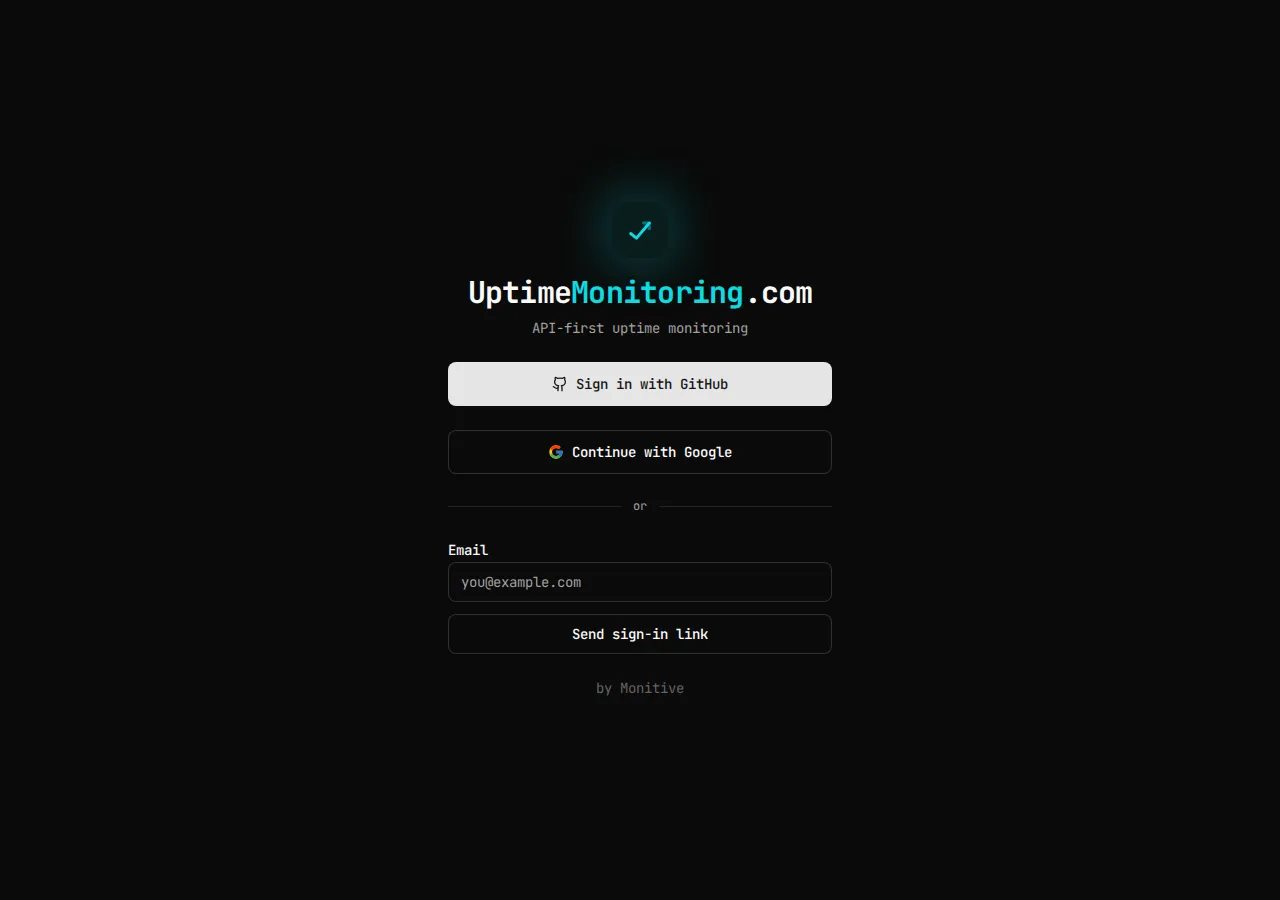
Section titled “What it does”UptimeMonitoring supports three sign-in methods: GitHub OAuth, Google OAuth, and email (a one-click link or a 6-digit code). None of them use a password. You can also link a second method to an account you already use, from account settings.
Each method resolves to its own identity on your account: a GitHub login resolves by your GitHub user ID, a Google login resolves by your Google account’s subject identifier, and email sign-in resolves by the address itself. Signing in with a different method than the one you used originally does not automatically find your existing account, even if the email address matches. See Linking a second method to an existing account below before you try a different provider on an account you already use.
Set it up in the app
Section titled “Set it up in the app”- Go to app.uptimemonitoring.com.
- Pick a method:
- Click Sign in with GitHub to authorize with GitHub.
- Click Continue with Google to authorize with Google.
- Enter your address under Email and click Send sign-in link.
- For email sign-in, check your inbox: either follow the link, or enter the 6-digit code on the page you’re sent back to. The link and code both expire in 10 minutes.
Linking a second method to an existing account
Section titled “Linking a second method to an existing account”If you already have an account — say, from GitHub sign-in — and you want to add Google or email as a second way in:
- Sign in with the method you already use first.
- Go to Settings and find Connected identities.
- Click Add Google, or enter an address under Email and click Add email, then confirm it the same way you would for a fresh email sign-in.
Do this instead of signing in directly with the new method on its own — a direct sign-in with an unlinked method creates a second, empty account with no monitors, because, as described below, matching email addresses don’t merge identities automatically.
If the identity is already linked to a different account: linking fails. You’ll see this if you try to add a Google account or an email address that’s already tied to a different UptimeMonitoring user — including a Google account whose own verified email happens to match your current account’s address. There is no merge path for this case today: the two accounts’ monitors and recipients stay separate. If you hit this, decide which account you want to keep using and sign in to that one directly with the method already linked to it.
No automatic merge by email, as of this guide’s publication
Section titled “No automatic merge by email, as of this guide’s publication”As this guide ships, a first Google sign-in with a verified email does not link to a user that already holds that address — even though Google’s authorization response does include your verified email address. UptimeMonitoring reads that email only to parse Google’s response and discards it immediately; it’s never stored (see the privacy policy). GitHub sign-in requests only your public GitHub profile via the read:user scope, not user:email — the service does not request private-email access and does not store or use any public email address that GitHub’s profile response may include. Google sign-in resolves only by Google’s subject identifier, GitHub sign-in resolves only by your GitHub user ID, and email sign-in resolves only by the address, with no cross-check between any of these paths. This is scheduled to change: um-api issues #390 and #392 will make a first Google or GitHub sign-in with a verified email link automatically to the account that already holds that address. Until those ship, use the linking steps above instead of relying on email matching.
Do the same through the API or MCP
Section titled “Do the same through the API or MCP”There isn’t an API or MCP equivalent for this guide — signing in and linking identities require completing an OAuth consent screen or clicking an emailed link in a browser, and the identity-linking endpoints (POST /api/v1/me/identities/github, /google, /email/start, /email/verify) only accept a browser dashboard session. Calling any of them with an API key or an MCP/OAuth access token returns 403 {"error":"session_required"}.
Once you’re signed in, the full set — creating monitors, managing recipients, querying incidents — is available over the REST API using an API key. MCP covers a narrower surface: monitor operations (create, read, update, delete, list) and incident operations (list), plus attaching an already-created recipient to a new monitor via create_monitor’s recipient_ids/recipients arguments. Creating or confirming recipients, and changing an existing monitor’s recipients, has no MCP tool today — use the REST API or dashboard for those. See Authentication for API key creation and format, Use UptimeMonitoring through MCP for connecting an agent, and Choose who gets alerts for recipient attachment semantics.
Plan limits
Section titled “Plan limits”Sign-in itself carries no plan limit. Once signed in, see Authentication for the API key limit (10 keys per account) and the monitors guide for monitor caps.
Troubleshooting
Section titled “Troubleshooting”“This identity is already linked to another user.” You tried to link a Google account or an email address already tied to a different UptimeMonitoring account. Sign in to that other account directly instead, or decide which of the two accounts to keep — there’s no built-in merge.
I signed in with Google/email and my monitors are gone. You likely landed in a second, new account rather than your original one. Sign out, sign back in with the method you used originally (GitHub, most likely), and link the new method from Settings → Connected identities instead of signing in with it directly.
The sign-in link or code expired. Links and codes are valid for 10 minutes. Click Use a different address (or just retry) to request a new one.
I got rate-limited. Email sign-in and linking share a per-address and per-process sender limit. Wait and retry — the page shows how long.